Showing posts with label windows. Show all posts

How To Fix Windows Explorer Has Stopped Working

How To Fix Windows Explorer Has Stopped Working ?

windows-explorer-has-stopped-working
Questions:
  1. My computer starts showing Windows Explorer Has Stopped Working on every windows login ?
  2. Explorer or expoler.exe appcrash while working or on startup of computer?
  3. Need to start explore.exe by run command in task manager manually every time when Windows Explorer Has Stopped Working arrives on the computer screen?
These are those questions what I’m getting once in a week so i think to create a tutorial about this topic to help and understand you people better about this problem.
Actually Explorer.exe is program which your windows operating system starts automatically on every windows startup to use your computer in a normal way. If your windows explorer might bit in problem that means its 100% possible you’ve seeing this “Windows Explorer Has Stopped Working” app crash while working on your computer or maybe on system’s startup. Explorer is just a program like others and it’s also possible it gets corrupted and that’s normal because when a virus hits your computer the first thing it will do to corrupts your windows explorer file to make your computer abnormal. Sometimes it’s easy to fix this problem but sometimes it won’t so, let’s see how quickly you fix your problem by following our solution guide below.

Solution Guide

Note: Try to run your computer on safe mode if your computer is not able to opens up normally.
Note: Try to run your explorer by run command feature on task manager if your windows explore still won’t able to opens on safe mode either. To open task manager on blank screen you’ll need to press“Ctrl+Aly+Del” key at the same time and the menu screen will opens up in front of you and after that click on file at the first right top option on task manager.
File >> New Task (Run…) >> Type “explorer.exe” and hit enter.
exploere run by task manager

Virus Scan & Registry Cleaning

Now you know this “Windows Explorer Has Stopped Working” problem is normally created by viruses and the best solution is to try is, install a good antivirus and do full system viruses scan and after that run windows registry cleaner software to repair and clean your windows registry from viruses. I’m only suggest these recommendation because viruses makes your windows registry infected and change it with the fake values in order to make your computer unable to use.
  1. Download and install a good antivirus and after that fully scan your computer. >>DOWNLOAD – Avast! Free Antivirus<<
  2. Download and install a good windows registry cleaner and after that scan and fix your computer’s registry.  >>DOWNLOAD_CCleaner_Free_Registry_Cleaner_tool<

Drivers Update

Normally this problem comes with corrupted video drivers of your computer and reinstalling drivers is the only option you have if the problem is generating from a corrupted drivers.

Repair Your Windows

If the above solution wont works for you that mean your computers windows got corrupted and it needs to get repair. To repair your windows there are 3 things you can do to fix your computer and those are:
1. “Sfc /Scannow” Cmd Command – “Sfc /Scannow” is a system scan command to repair and fix your windows by command prompt automatically. It’s a best way to fix your windows by just typing single command on your computer and most of this problem got quickly fix by just using it. To use this command you’ll need to open your window command prompt ‘as an administrator’ and then type the “Sfc /Scannow” command on it like the picture shown below.
sfc scannow
2. Manually Registry Repair – Most of times these above given solutions wont works because of windows bad corruption then the second option you have is to repair your windows registry by your own. Repairing registry for your explore is very easy you’ll just have to follow the instruction given below.
   A. Press Windows key + R to open run command and after that type “Regedit” and hit enter to get into windows registry folder.
regedit open by run command
   B. Now go to the given path on your windows registry editor by on folding registry folders  “HKEY_CURRENT_USER\Software\Microsoft\Windows NT\CurrentVersion\Windows” and after that you will find your registry look like this:
virus corrupted load registry fo explorer
As you can see on listed picture above there are 2 types of possible “load” file you’ll find on your computer screen, one with virus corrupted and second one is normal which don’t have any data value on it.  On my computer my “load” string file having a value data path to “xfvcww.exe” because of virus corruption and that means my windows is having problem with explorer. If your load file looks normal to you that means you have this load registry file problem just move to our next registry repair step No. “D:” below.
   C. If you find your load file is corrupted then the best thing you can do to modify your registry and makes it normal as it was before. Just right click on your “Load” registry and after click on modify. After when the “edit string” windows pop out just edit the valve and make it blank and click ‘ok’ to save your file. After saving the file make a reboot (restart) your computer and test it. If the problem still exists move to our next step below.
save load value
   D. If the above registry repair wont works for you or maybe you didn’t find any corrupted load file then it’s possible you having a problem with another registry file. To identify you’ll need to go to this path and search for a registry named “shell”. Path “HKEY_CURRENT_USER\Software\Microsoft\Windows NT\CurrentVersion\Winlogon
If you find a registry named “shell” with some virus file path attached to it than its 100% possible this is a main root of your problem. In that case you can delete or edit the shell registry to blank and then restart your computer to make it normal as it was before. If you can’t find any file named shell that means your windows is fully corrupted and you can fix it by resorting or reinstallation of your computer windows.
shell registry fix for explorer

Last Options

If you still having this Windows Explorer Has Stopped Working appcrash on your computer after trying all the solution given above in this tutorial then you have only two options left and those are”
  1. Restore your windows to the earlier stage and make it back to normal.
  2. Reinstall your windows and make everything back to new.
Enjoy...........NCTTS

How to Quick Boot A USB or CD/DVD Directly From the Boot Menu ?

How to Quick  Boot A USB or CD/DVD Directly From the Boot Menu ?

I know this time you might wanna to boot something on your computer and the quickies way to boot something is by boot menu. Boot menu is the quick selection screen which can give you the one time selection for the item what you want to boot either it’s USB to boot or a CD-ROM. By the boot menu booting made easy to you, by using this you don’t need to make changes in your computer bios setting to make boot something. If you want to install windows from your Pendrive or DVD, or want to boot some software to use, the boot menu will make it easier and in this tutorial I’m gonna show you how to do it.
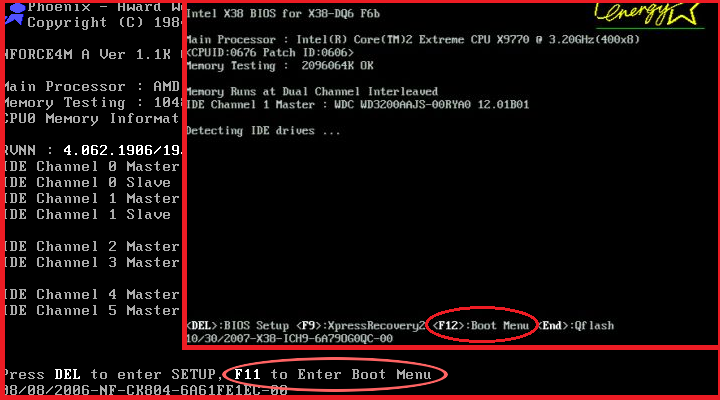
Using boot menu is very easy anyone can do this you’ll just need an assign keyboard key to press which will open the boot menu when the computer starts. Normally the first boot screen give you the instruction like a key name to open it or either you can try some default keys to open it. If the boot screen didn’t show you something then you can try these key one by one to open the boot menu. The keys areEsc, F7, F8, F9, F10, F11 and F12 you can try these keys one at a time by pressing it again and again after the 2 sec of your system starts and if the key is correct your boot menu will open. Try the F10, 11, 12 first because it will assign most for the menu. Sometimes the Esc key take you to the menu where use can select the item what you wanna to open like bios, boot menu, memory test etc. I means you can try that one too if your computer have that one.
bios-boot-menu-message
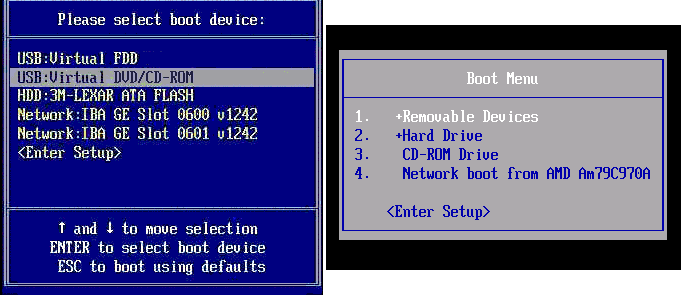
By using the above keys now I think you are in the boot menu. In this menu now you are seeing all of your Hard Drive, Cd or DVD Drives and Your Pendrive or whatever the storage device you’ve connected to it. Now you can easily select the drive what you want to boot from and make it work.
If you are wanted to boot from your pen drive or your flash drive, you can do it by just selecting the drive into it or if want to boot from your DVD drive then you’ll also need to do the same too. Just select the item by your keyboard’s aero key and hit enter that’s it.
vmi_boot_menu
If your computer doesn’t supports the boot menus then you can also configure the boot sequence by yourself in the bios setting.

How to Enable Hibernate In Windows 8

How to Enable Hibernate In Windows 8

Today we are here with the method for How to Enable Hibernate In Windows 8. Many of the computer user are using windows 8 in their laptops and desktops today. But there was a feature in Window 7 that user did not get in their window 8, the feature is Hibernate option. This feature is actually available in window 8 too, but it is actually disabled by default. So if you want to use hibernate in window 8 then you have to enable this feature. So we are here to resolve your this issue with a method by you canactivate the Hibernate in Window 8. So just follow up the below post to proceed.

How to Enable Hibernate In Windows 8

How to Enable Hibernate In Windows 8
In this method you will activate the hibernate option that is by default disabled by the microsoft. In this method you will access power options that are capable of editing window power settings and then you will be able to enable or disable your selected button in shutdown options. So just follow the below steps to proceed.

Steps To Enable Hibernate In Windows 8

  1. First of all you need to open power settings of your computer, for that press Win+w(window button+ w letter)button of your computer keyboard.
  2. Now a search box will get appear at the right of screen, type there “power” and select “Power options” there.
  3. Now the power option explorer will open, there at left side select “Choose what the power button do”.
  4. Now click on the “Change settings that are currently unavailable”.
  5. Now scroll down and under the shutdown option click on the hibernate check box there at the bottom.
  6. Now click on save changes and close the explorer.
  7. Thats it you are done, now everytime you click on power button you will get the hibernate option too.
Enjoy The Tricks........NCTTS

Best Free Windows Software 2015

Here is the Top and Best Free Windows Software 2015 : Windows is one of the best OS for Computer user. Windows comes with lots of features , so in this post we collect some best free software for Windows. Thes software list is very important for every computer user. If you are a noraml user ya expert you must have these tools for your computer.  We collect only free programs here , we make this list for increasing your knowledge and stop software piracy. TechHacks advice for our all readers always download free and paid software from official Website. Best Free Windows Software 2015

Best Free Windows Software 2015

Best Free Windows Software 2015

 Top Best Free Windows Software 2015

1) Google Chrome Browser – Best Free Windows Software 2015

Chrome Browser is one of the best web browsing software for every computer. Google Chrome is totally free and available for Android, Linux , Mac and Windows Users. Chrome offers millions of extensions , so you don’t need to go out of your browser. If you want best browsing experiance download Google Chrome Browser for your Computer.

2) VLC Media Player – Best Free Windows Software 2015

VLC media is one of the best free media player for all tye of platforms like Android, Windows, Mac and Linux. This is totally free and coming with lots of features. Features that you don’t compare with other media players. Vlc is very important for playing movies, videos  and songs. Vlc is best because they offers simplicity and lots of features in best UI.

3) Picasa

Picasa is made by Google, this sofware is best for editing and viewing your pictures. You can do more with your pictures and wallpaper from this software. Picasa offers many photo editing tools for making your photos good looking.

4) Free Download Manager – Best Free Windows Software 2015

Download Google Chrome is not enough I mean you need good download manager for you desktop. Free download manager is one of the best free download management software for your system. This download manager offers torrent downloading, so you don’t need to download utorrent or bitorrent software for downloading torrents. Free Download Manger is available for all Windows Version..

5) 7Zip


7 Zip is file archiever and unpacking software for windows. With this software you can extract all type of compressed files in system. You can also compress files and pictures in many typ eof formats. This is most important software for every windows and computer user.

6) Microsoft Security Essentials

When we talk about free that mean totally free but best. For security you need good antivirus for your computer. Microsoft Security Essentials is officialy launched by Microsoft Company. This software is simple and do every security task what you want like real time scanning, scan system and pendrive for virus and trojans.

7) Sumatra PDF

Sumatra Pdf is free for all windows users. Sumatra pdf reader sofware is very light (4Mb). With sumatra you view pdf ,epub,ebook,XPS and lots of format in Windows. This is totally free without any trial. So download these software for reading Pdf and Ebooks.

8) Rainmeter

Rainmeter is desktop customize tools for your computer. With this tools your computer experiance is more better. With this software you can make computer WOW. If you want something new from your computer downlod now Rainmeter for Windows.

9) Teamviewer

Technically Teamvier is free for all windows users. With this tool you can control other computers for Technical Assistance. You can help your friend from these software. Teamviewer also offers voice chat , so you can chat with your friends from this software.

10) CCleaner

If you don’t download lots of above software you computer may slow down, now you need speed up software for your Windows. CCleaner is one of the best software for clean all junks ,temporary files,cache files and other unused files from computer. CCleaner also clear your bad registry files. CCleaner increase your Computer Perfomence and Life.
These are Top best 10 Free Software for Windows 2015 and for Every computer. Download these software and run your computer like Boss. If you think your favaorite free software is not listed in this list comment your software name. We make another list with your most commented  software.

Windows 10 Free Download 2015 – 32 Bit & 64 Bit

Here is Windows 10 Free Download 2015 32 bit & 64 bit : Today, i’m going to share windows 10 free download 2015 32 bit & 64 bit. Now you can easily download windows 10 for free. Microsoft announced its new Windows Operating System Windows 10 turning down the forecast of the tech world and its users about the successor of Windows 8 as Windows 9. Windows has been one of the most widely used operating system across the globe in smart devices with easygoing user interface and features. Microsoft introduced the first chapter of our Windows 10 story, talking about the many ways Windows 10 is great for business on 30th September 2014. Download the latest updated Windows 10 free download 2015 32 bit & 64bit your operating system exclusively for your PC/Laptop.


Windows 10 Free Download 2015 – 32 Bit & 64 Bit

Windows 10 Free Download 2015 - 32 Bit & 64 Bit
Windows 10 Free Download 2015 – 32 Bit & 64 Bit

Windows 10 Free Download 2015 – 32 Bit & 64 Bit

Features of Windows 10 :-

  • New Cleaned Start Menu.
  • Mix of Windows 8 & Windows 7 Metro style UI (User Interface).
  • Virtual Desktops Feature.
  • Task View Option.
  • Dynamically Resizing of Windows Apps.
  • Huge Search Improvements.

Screenshots Of Windows 10 :-

Screenshots Of Windows 10 Free Download 2015 - 32 Bit & 64 Bit
Windows 10 Free Download 2015 – 32 Bit & 64 Bit
Screenshots Of Windows 10 Free Download 2015 - 32 Bit & 64 Bit 1
Windows 10 Free Download 2015 – 32 Bit & 64 Bit

Windows 10 Specifications

  • Windows 10 Technical Preview : English
  • Setup File Name: WindowsTechnicalPreview-x86-EN-US.iso (32 Bit) / WindowsTechnicalPreview-x86-EN-US.iso (64 Bit)
  • Full Setup Size: 2.9 GB (32 Bit) / 3.81 GB (64 Bit)
  • Setup Type: Offline Installer / Full Standalone Setup:
  • Compatibility Architecture: 32/64 Bit (x86)
  • License: Free
  • Developers: Microsoft

Minimum System Requirements For Windows 10

Make sure you system meets minimum system requirements for windows 10 free download 2015 32 bit & 64 bit are following :-
  • Processor: 1 GHz
  • Memory (RAM): 1 GB (For 32 Bit) / 2 GB (For 64 Bit)
  • Space: 16 GB Free Hard Disk Space

Windows 10 Free Download 2015 32 bit & 64 bit (Official) :-

Windows 10 PRO32 bit64 bit
English (USA)Download (2.93 GB)Download (3.81 GB)
English (United Kingdom)Download (2.94 GB)Download (3.79 GB)
Chinese (Simplified)Download (3.05 GB)Download (3.96 GB)
Portuguese (Brazil)Download (2.91 GB)Download (3.76 GB)

Windows 10 Free Download 2015 32 bit & 64 bit : Windows 10 Enterprises

Windows 10 Enterprises32 bit64 bit
English (USA)Download (2.84 GB)Download (3.70 GB)
English (United Kingdom)Download (2.85 GB)Download (3.69 GB)
Chinese (Simplified)Download (2.96 GB)Download (3.86 GB)
Portuguese (Brazil)Download (2.82 GB)Download (3.66 GB)
Torrent Links (for available)

Windows 10 Free Download 2015 32 bit & 64 bit: Windows 10 PRO

Windows 10 PRO32 bit64 bit
AIO (32 & 64 bit on 1 ISO)Download (4.67 GB)
English (USA)Download (2.94 GB)Download (3.79 GB)
English (United Kingdom)Download (3.05 GB)Download (3.96 GB)
Portuguese (Brazil)Download (2.91 GB)Download (3.76 GB)

Windows 10 Free Download 2015 32 bit & 64 bit : Windows 10 Enterprises

Windows 10 Enterprises32 bit64 bit
English (USA)Download (2.84 GB)Download (3.70 GB)
Portuguese (Brazil)Download (2.82 GB)Download (3.66 GB)

Windows 10 Free Download 2015 32 bit & 64 bit : Product keys

PRO : NKJFK-GPHP7-G8C3J-P6JXR-HQRJR

ENTERPRISES : PBHCJ-Q2NYD-2PX34-T2TD6-233PK

Now, in this way you’re sucessfully Upgrade To Windows 10 and Windows 10 Free Download 2015 Full Version ISO 32/64 Bit, Enjoy don’t forget to share it with your friends. I hope with these above links you will enjoy windows 10 free download 2015 32 bit & 64 bit .

Enjoy...........NCTTS